


Get Connected (iPhone 14 and Earlier Models)
Mobile USB-C Recording
iPhones with a Lightning Port (iPhone 14 and earlier models)
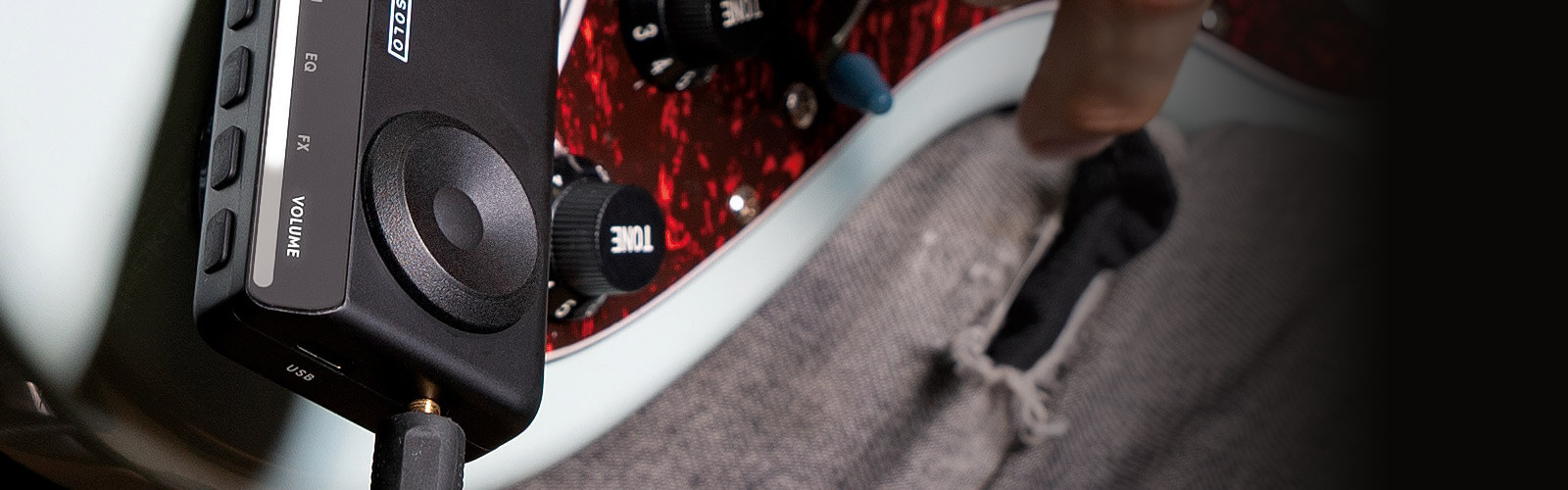
Check Your iPhone Model
If you’re using an iPhone 14 or earlier, you have a Lightning connector.
From the iPhone 15 series onwards, Apple switched to USB-C — those models can plug straight into our USB-C equipped products with a standard USB-C cable.
For Lightning iPhones, there’s one extra step…
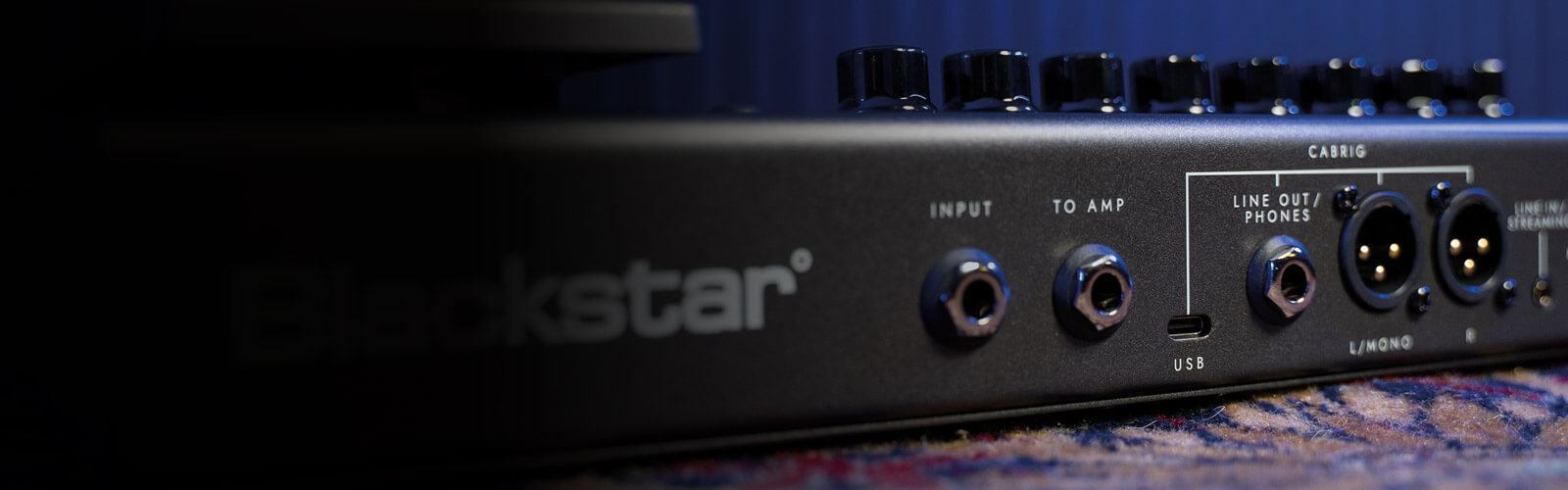
Choosing the Right Cable
Apple’s standard Lightning-to-USB-C charging cable is great for charging and data transfer — but for recording with our USB-C equipped products, you’ll need a Made-for-iPhone (MFi) Lightning-to-USB adapter that supports audio over USB.
Why? These audio-capable adapters are designed so your iPhone can communicate with professional audio gear like our USB-C equipped products, delivering clean, high-quality sound.
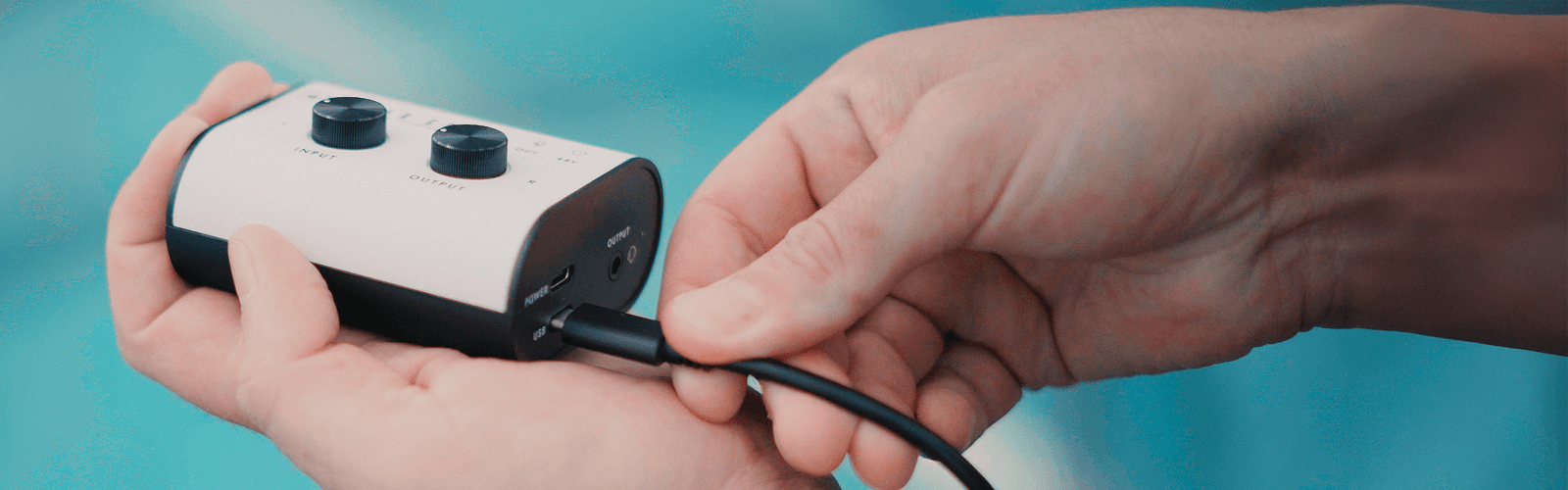
What to Use
Look for an MFi-certified adapter that specifically mentions audio support — the same kind used with other USB audio interfaces for iPhone.
Step-by-Step Connection
1. Switch on your USB-C equipped product.
2. Connect your USB-C cable to the product’s USB-C port.
3. Plug the other end into your MFi audio-capable Lightning-to-USB-C adapter.
4. Connect that adapter to your iPhone.
5. Open the app — you’re ready to record.
Final Tip
With the right audio-capable adapter, our USB-C equipped products will connect seamlessly to older Lightning iPhones, giving you crystal-clear recordings anywhere.

Video Guide
Click the link below for a quick video guide using the Polar Go as an example.